> For the complete documentation index, see [llms.txt](https://help.isdown.app/llms.txt). Markdown versions of documentation pages are available by appending `.md` to page URLs; this page is available as [Markdown](https://help.isdown.app/status-page/how-to-share-a-status-page.md).
# How to share a Status Page
Share your IsDown status page with your team and stakeholders to provide real-time visibility into the status of your monitored services
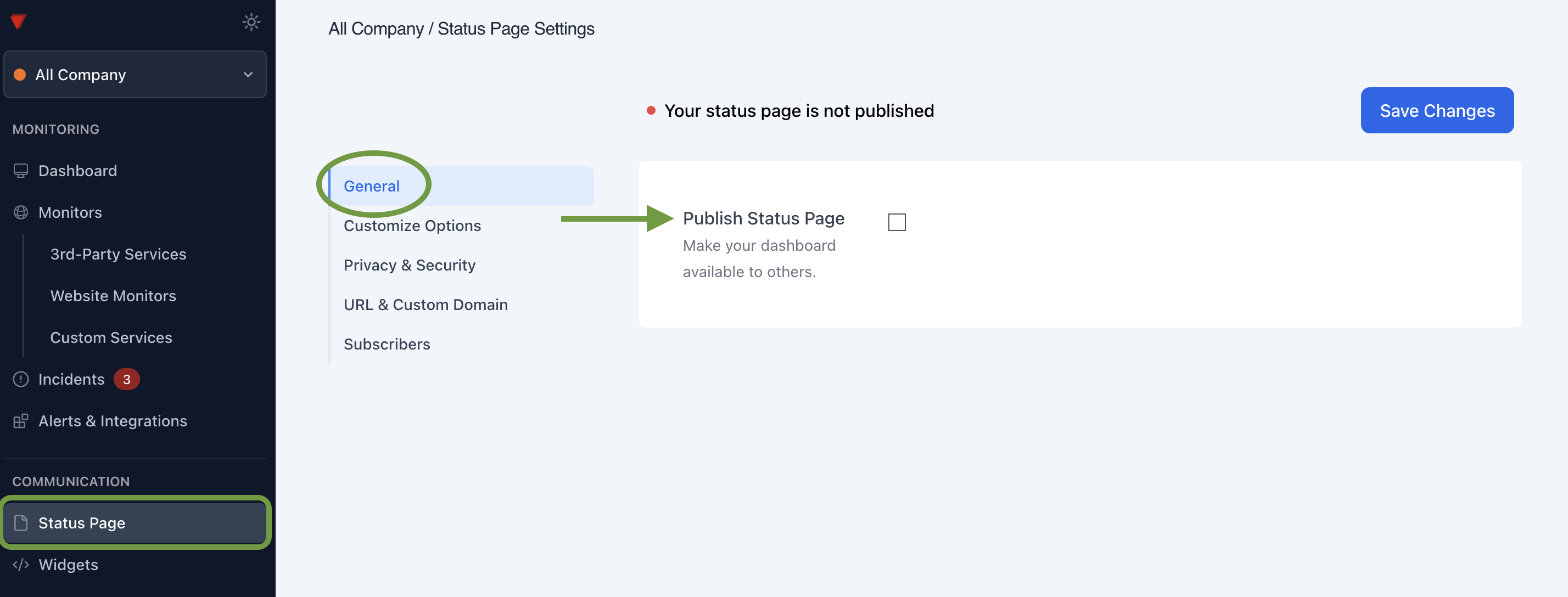
1. Sign in to your **IsDown account**
2. Choose the profile you want to share in the left sidebar
3. Click **Status Page**
4. Go to **General** Options and click on the check box to **publish Status Page.**
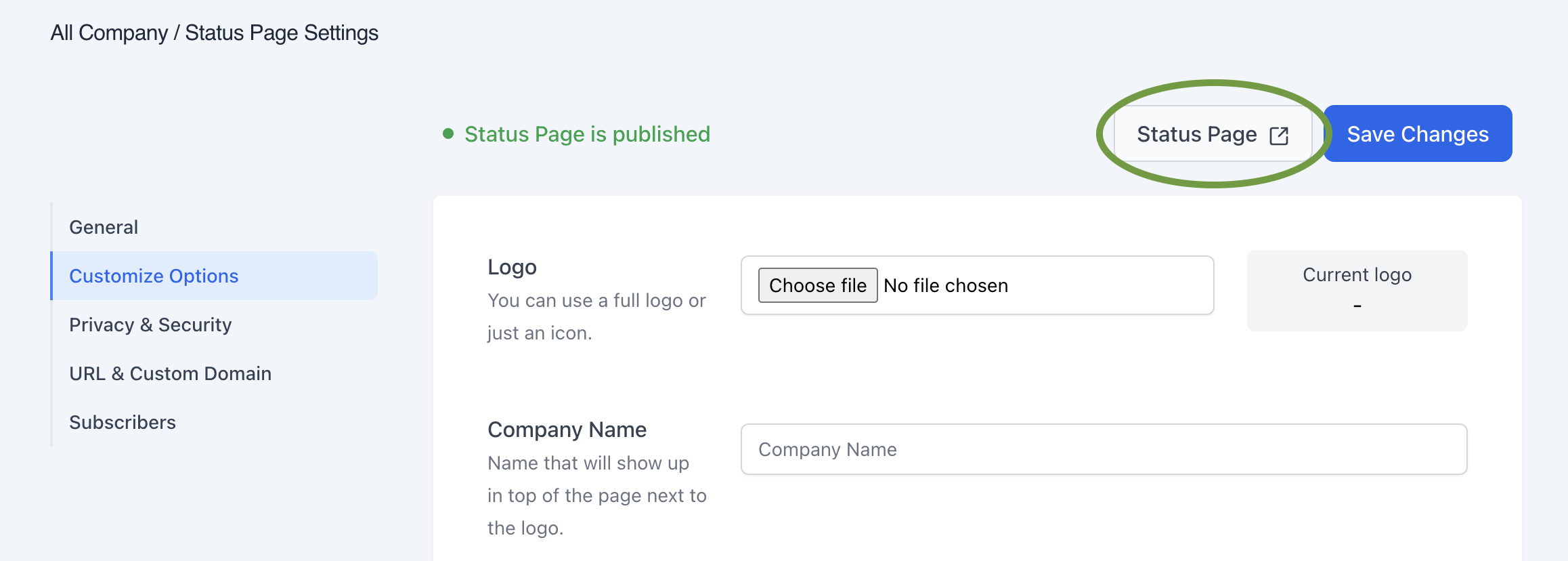
5. After **Save Changes**, you'll have a direct link to the Status Page.
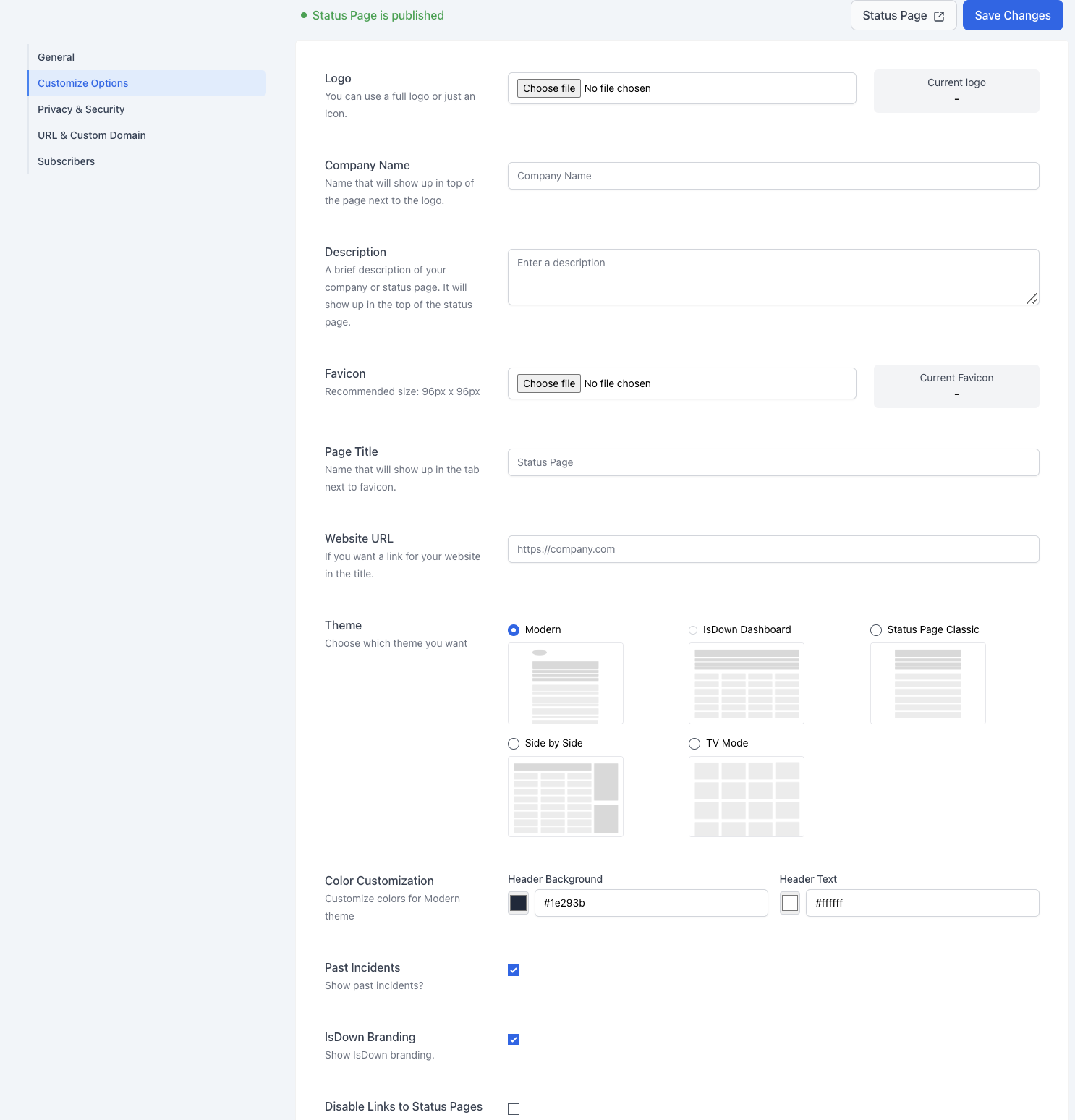
6. Check other options to customize your dashboard for your team and clients. Here are the options you can customize:
* Logo
* Company Name
* Link in the Logo / Company Name
* Short Url ( by default, you have a UUID )
* Theme
* Show Past Incidents
* Show Maintenance Feed
* Protect Status Page behind a password
If you have any questions or need help, please contact us via in-app chat or email us at ****.
***
**Related Articles**
* [**How to Customize a Status Page**](https://help.isdown.app/status-page/how-to-customize-a-status-page)
* [**Set Up Status Page SSO**](https://help.isdown.app/status-page/set-up-status-page-sso)
* [**Enable Subscribers**](https://help.isdown.app/status-page/enable-subscribers)