> For the complete documentation index, see [llms.txt](https://help.isdown.app/llms.txt). Markdown versions of documentation pages are available by appending `.md` to page URLs; this page is available as [Markdown](https://help.isdown.app/custom-monitor/how-to-update-an-incident.md).
# How to Update an Incident
Use incident updates to share new findings, mitigation steps, or final resolution—all without creating a separate incident.
#### Steps to Update an Incident:
1. Open **Incidents** in the sidebar and click the incident you want to update (**"Edit"** button)
2. Click **➕ Add Update or Mark as Resolved** in the incident timeline.
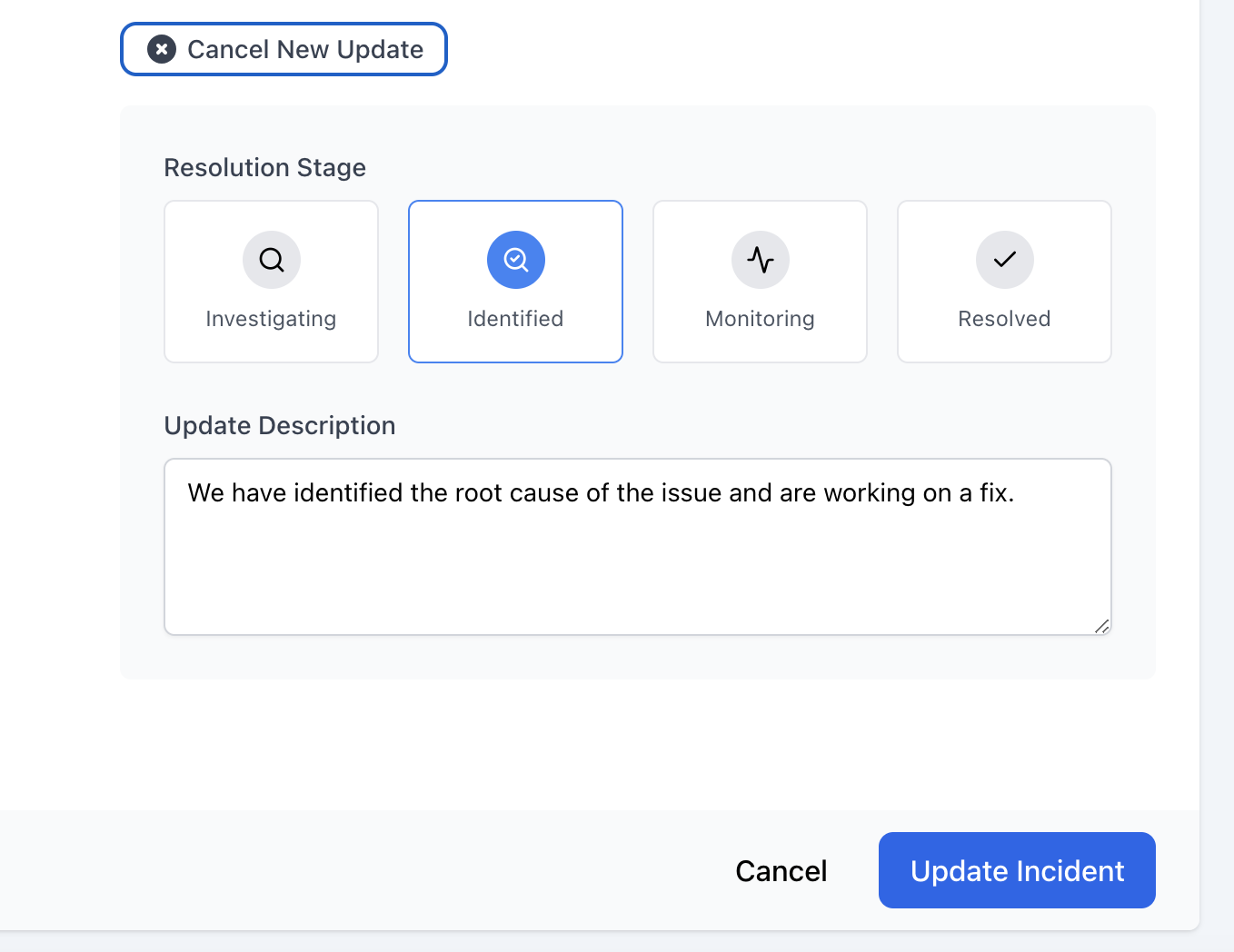
3. **Resolution Stage** – pick the current phase.
4. **Update Description** – enter a concise message (supports Markdown). Examples:
*“We’ve rolled back the faulty release; monitoring recovery.”*
5. *(Optional)* Adjust **Severity** if impact has changed.
6. Hit **Update Incident** to conclude this step.
Choose **Resolved** only when:
* All user impact has stopped.
* Fix is deployed and verified.
* You’re ready to close subscriber alerts.
A “**resolved**” update automatically sets the service status back to **OK**.
Need assistance? Contact us via chat or email us at **.**
***
Related Articles
* [**How to Create Custom Services**](https://help.isdown.app/custom-monitor/how-to-create-custom-services)
* [**How to Delete Custom Service**](https://help.isdown.app/how-to-delete-custom-service)
* [**How to Add an Incident**](https://help.isdown.app/how-to-add-an-incident)